
100 Pcs Water Bottle Labels 8.2x2 inch Printable Glossy White Waterproof Vinyl Sticker Labels for Inkjet or Laser Printer
Product Information
About this item
- Premium Glossy Labels – 100 pieces of 8.2x2 inch waterproof vinyl bottle labels with a smooth glossy finish for vibrant, professional-quality prints. 5 Labels Per Page,Total 100 Rectangle Labels. Thickness: 80μm.
- Inkjet & Laser Compatible – Works with most home and office printers, delivering sharp text and vivid color designs.
- Durable & Waterproof – Made of high-quality vinyl that resists water, smudges, and tearing, ensuring long-lasting use.
- Strong Adhesion – Self-adhesive backing sticks firmly to bottles, jars, and packaging without peeling.
- Multi-Purpose Use – Perfect for water bottles, wine bottles, homemade beverages, cosmetics, pantry jars, and small business packaging.
- TIPS: 1. Printing setting:please choose ‘HIGH QUALITY GLOSSY PAPER’ and 'Letter SIZE'. 2. We offer free templates on our website 3. If you have any problem, please go to your order and click ‘Get product support’ to contact us. We offer 24 hours customer service. We recommend that you use PDF files for printing. When your printing does not align, please change the printer settings according to the instructions. You can also contact us and we will modify the template for you.
Product Description
This vinyl label is compatible with most inkjet and laser printers, please check if your printer can print vinyl label paper over 200gsm before purchasing. You can easily download the templates you need by following the instructions inside the package. How to use: When you edit with canvas, after the file is edited, we recommend that you store the file as a PDF and then print it out. Printing Settings in PDF format: Open the printer dialog box, and select advanced or Preferences. Check ‘Paper Size’ to see if it’s the correct size. Then go back to printer dialog box, select ‘Actual size’ under ‘Page Sizing&Handling’ Printing Settings in MS Word Check ‘Paper size’ under Word Print Setting, make sure it’s letter size. Check ‘Document Size’ from ‘Printer Properties’, make sure it’s the correct paper size, ‘letter size’. DONT SELECT "BOARDLESS"
Similar Items
 GOTIDEAL Liquid Chalk Markers, 48 Colors, 6mm Reversible TipsView price
 Sharpie Stained Fabric Markers, Brush Tip, Assorted Colors, 8 Count$13.47
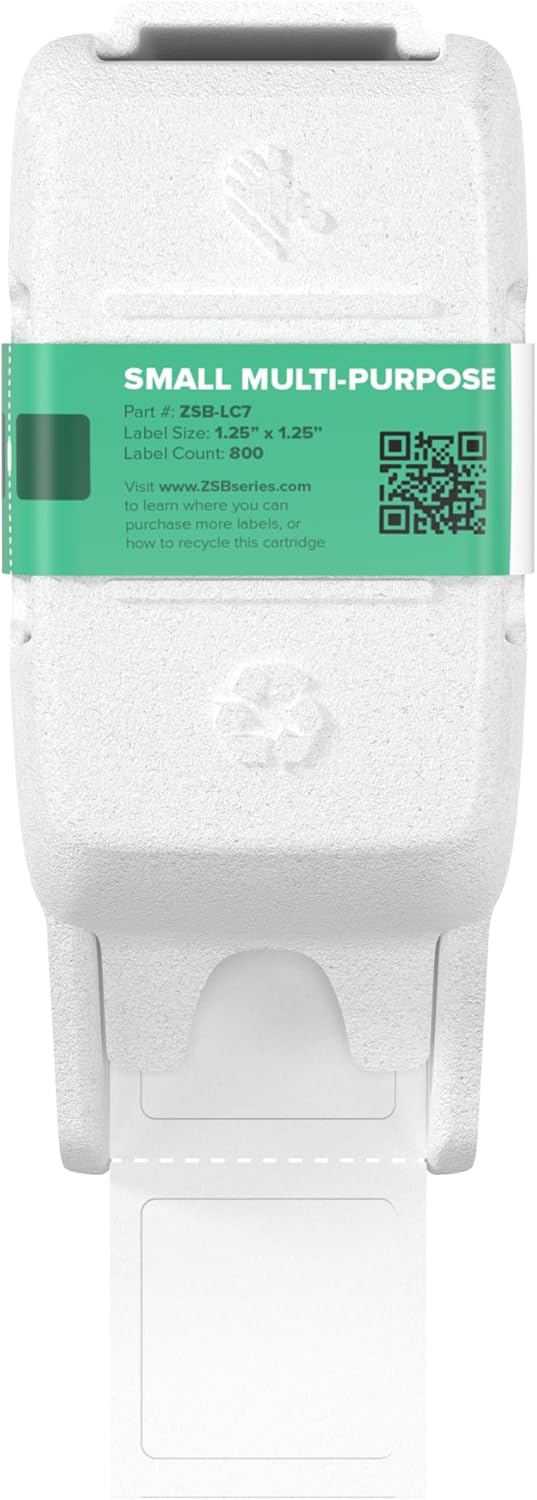 Zebra ZSB Series Labels - Potato Starch-Based Printer Label Paper - Recyclable Cartridge for Stickers - Versatile, Cloud-Based Adhesive - Multipurpose, 1.25" x 1.25"View price
 Avery® Printable Return Address Labels, Sure Feed® Technology, 0.5" x 1.75", Matte Clear, 800 Blank Mailing Labels (15667)$13.29
 Baderke 3.4 oz Mini Honey Jars Party Favors, 12 Pack Small Glass Honey Jar with Lids Empty Glass Jars for Baby Shower Wedding Bridal Shower and Birthday Party FavorsView price
 Avery Printable Address Labels for Copiers, 1-1/2" x 2-13/16", White, 2,100 Blank Mailing Labels (05360)$33.12
 KINGART PRO 445-48 Dual Twin-Tip Brush Pens, Multicolor, 48-Colors$19.98
 Zebra Pen DelGuard Asstd Barrel Mechanical Pencil, 0.5mm, Fine Point, 3-Pk$18.36