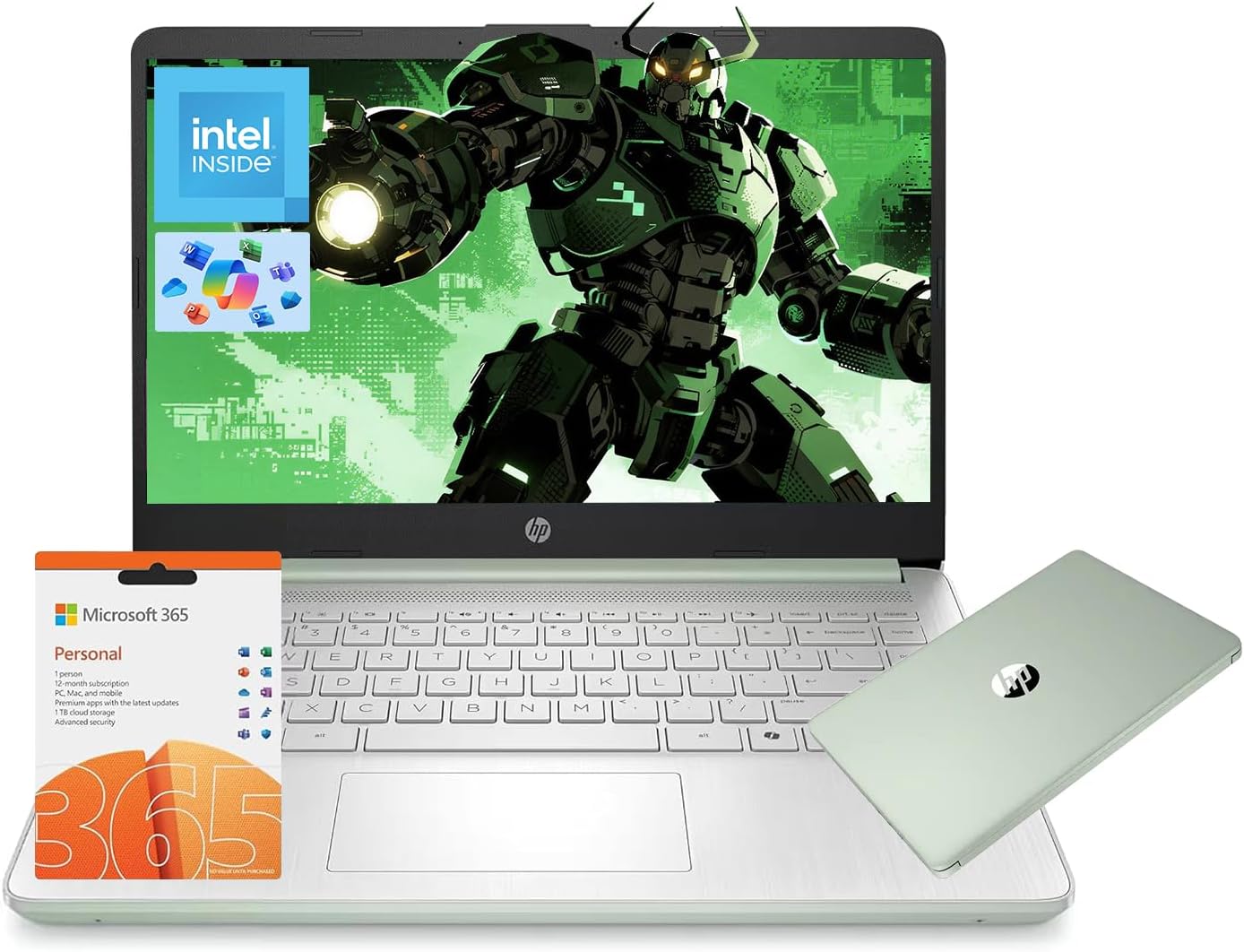
HP 14" AI-Ready-Laptop for Students Home Office, Copilot AI Intel N150 up to 3.6GHz, 4GB RAM 128GB UFS, Windows 11 office-365 1-Y, WiFi6 USB-C HDMI
Product Information
About this item
- AI Study Helper
- Using ChatGPT-style tools, Copilot, or browser AI for school? Intel N150 helps students draft outlines, summarize notes, research topics, manage tabs, and finish everyday assignments on a simple Windows laptop.
- Copilot + Microsoft 365
- Plan papers, polish emails, build slides, and organize class notes with 1-Year Microsoft 365 and Copilot access. It is a practical setup for students, parents, and home office users entering the AI productivity era.
- Everyday AI Workflow
- This is not a high-end AI workstation; it is built for cloud-based AI tools that most people actually use, including writing help, summaries, study planning, simple research, and task organization.
- 4GB RAM for Basic AI Tasks
- 4GB DDR4 memory is best for light AI-assisted work such as browser prompts, Microsoft 365 documents, email drafts, online classes, and web research, giving entry-level users a simple and affordable Windows setup.
Product Description
Microprocessor: Intel Processor N150 (4 Cores, up to 3.6 GHz) Memory:4GB DDR4 RAM Display: 14" HD (1366 x 768), micro-edge Wireless connectivity: Wi-Fi 6 and Bluetooth 5.4 combo External ports: 1 x SuperSpeed USB Type-C 3.0 2 x SuperSpeed USB Type-A 3.0 Minimum dimensions (W x D x H): 12.76 x 8.86 x 0.71 inches Weight: 3.24 LB Battery life mixed usage: Up to 11 hours Webcam: HP Wide Vision 720p HD camera with camera shutter and integrated dual array digital microphones Operating system: Windows 11 Home Activate pre-installed Office 365: 1.Launch any Office app > 2.Start your activation by signing in with your Microsoft account(Create a account if you don't have one yet) > 3.Click "Activative Office" > 4.Sign in your account and follow the next prompts. > 5.Complete Step 1,2 and 3 > 6.Click on Refresh once Office is ready > 7.Open a document and accept the license agreement. Switching out of S mode in Windows 11 Windows 11 in S mode is designed for security and performance, exclusively running apps from the Microsoft Store. If you want to install an app that isn't available in the Microsoft Store, you'll need to switch out of S mode 1. On your PC running Windows 11 in S mode, open Settings > System > Activation. 2. In the Switch to Windows 11 Pro section, select Go to the Store. (If you also see an "Upgrade your edition of Windows" section, be careful not to click the "Go to the Store" link that appears there.) 3. On the Switch out of S mode (or similar) page that appears in the Microsoft Store, select the Get button. After you see a confirmation message on the page, you'll be able to install apps from outside of the Microsoft Store.
Similar Items
 ASUS 14" Chromebook Portable Laptop - 14" FHD LED Display, 8-Core MediaTek Kompanio 520 Processor, 4 GB RAM, 64 GB eMMC, WiFi 6, Chrome OS, 15H Long Battery Life, Gray (Renewed)View price
 BTXETUEL Mini 4-Key Keypad WASD Arrow Key Keycaps Keyboard One-Handed Mechanical Gaming Keypad Programmable USB-C Customized Keyboard for Working or Gaming (Black, Arrow Keycaps 1)$19.99
 Lenovo Yoga 7i 2-in-1 w/Ultra 5, 14”OLED Touch,16GB RAM, 1TB SSD, Yoga Pen$1,264.99
 60 Percent Gaming Keyboard Portable 61 Keys Mechanical Keyboard Compact Wired Keyboard RGB Backlit for PC Laptop Gamer(61 Blue/Blue Switch)$32.99
 ZIYOU LANG RK-T60 Wired Mechanical Gaming Keyboard Mini Portable with Rainbow Backlit 62Key ABS Keycaps Anti-Ghosting Ergonomic Design Coiled Aviator Cable for PS4/PC/WIN Gamer(Yellow/Brown Switch$29.99
 Superer 45W USB-C Charger Fit for Lenovo Chromebook Laptop, 10FT Power Cord$15.99
 HP OmniBook X Flip 14 2-in-1 Touchscreen Laptop, Intel Core Ultra 5 226VView price
 HP Elite Dragonfly 13.5" Touchscreen Convertible 2 in 1 Notebook - 2K - Intel Core i5 12th Gen i5-1245U - vPro Technology - 8 GB - 256 GB SSD - English Keyboard - Slate Blue - Intel Chip - 2256 xView price