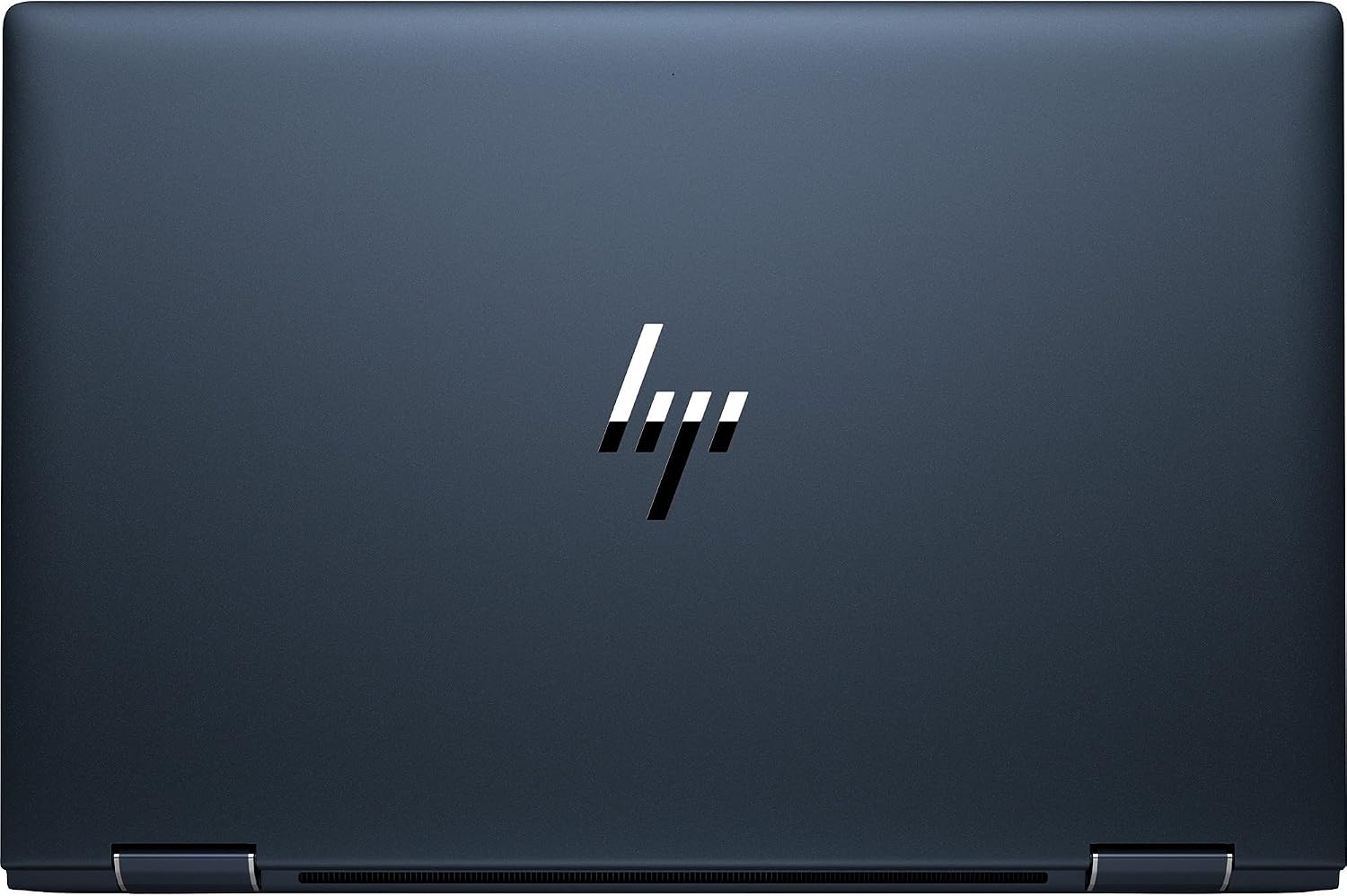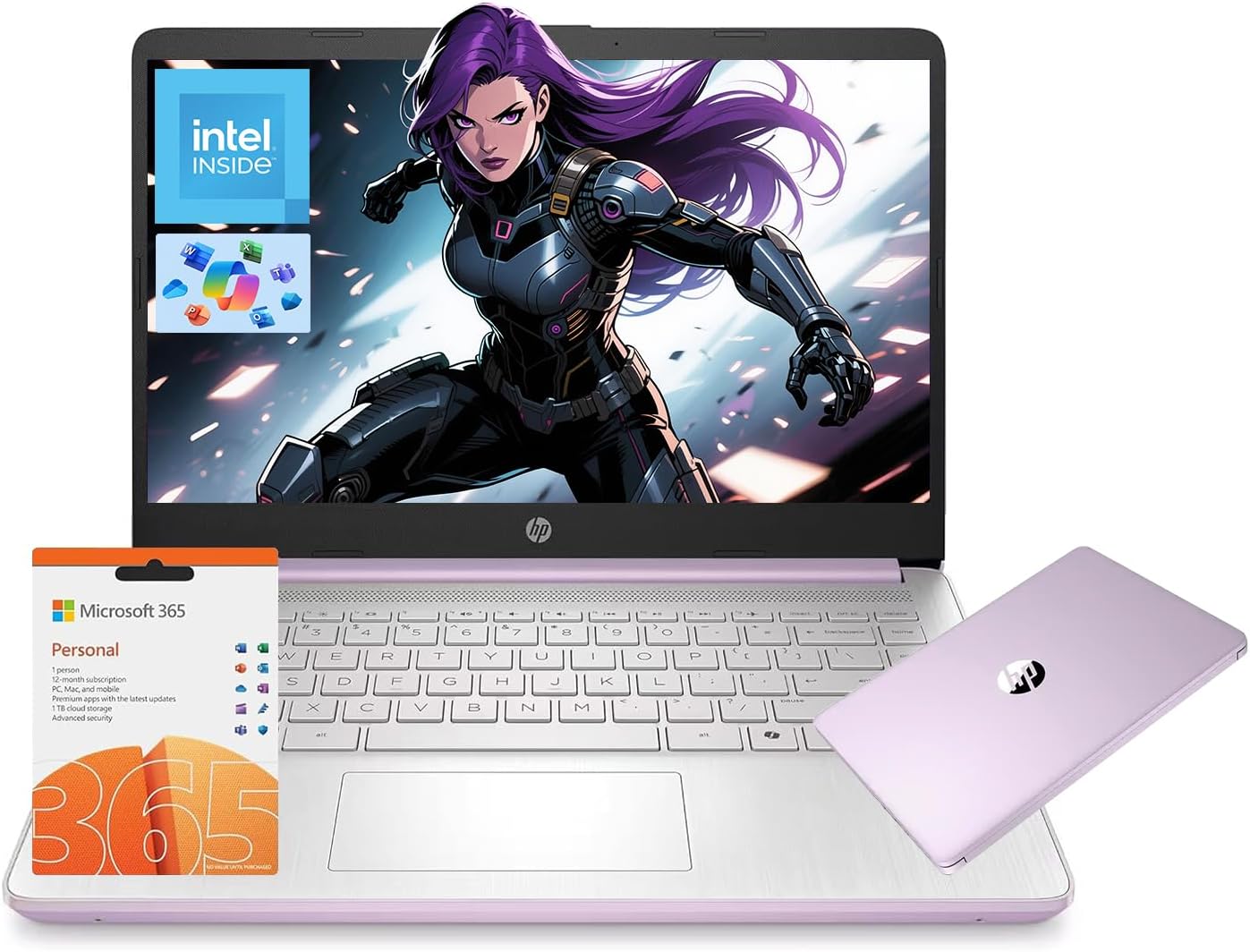
HP 14" AI-Ready-Laptop for Students Home Office Copilot AI Intel N150
Product Information
About this item
- AI study Helper
- Using ChatGPT-style tools, Copilot, or browser AI for school? Intel N150 helps students draft outlines, summarize notes, research topics, manage tabs, and finish everyday assignments on a simple Windows laptop.
- Copilot + Microsoft 365
- Plan papers, polish emails, build slides, and organize class notes with 1-Year Microsoft 365 and Copilot access. It is a practical setup for students, parents, and home office users entering the AI productivity era.
- Everyday AI Workflow
- This is not a high-end AI workstation; it is built for cloud-based AI tools that most people actually use, including writing help, summaries, study planning, simple research, and task organization.
- 【Optimized Windows 11 Home Operating System Hub】 Experience a responsive workspace with enhanced file searching capabilities. This modern for college student users features a clean Operating System environment that satisfies a casual gaming user after dark.
- 【Next-Generation WiFi6 and Stable Bluetooth 5.4 Wireless】 Connect to high density library networks or corporate networks instantly. This ultra stable HP 14" Business Laptop guarantees jitter free video rendering, keeping digital creators fully connected to their peers.
Product Description
Microprocessor: Intel Processor N150 (4 Cores, up to 3.6 GHz) Memory:4GB DDR4 RAM Display: 14" HD (1366 x 768), micro-edge Wireless connectivity: Wi-Fi 6 and Bluetooth 5.4 combo External ports: 1 x SuperSpeed USB Type-C 3.0 2 x SuperSpeed USB Type-A 3.0 Minimum dimensions (W x D x H): 12.76 x 8.86 x 0.71 inches Weight: 3.24 LB Battery life mixed usage: Up to 11 hours Webcam: HP Wide Vision 720p HD camera with camera shutter and integrated dual array digital microphones Operating system: Windows 11 Home Activate pre-installed Office 365: 1.Launch any Office app > 2.Start your activation by signing in with your Microsoft account(Create a account if you don't have one yet) > 3.Click "Activative Office" > 4.Sign in your account and follow the next prompts. > 5.Complete Step 1,2 and 3 > 6.Click on Refresh once Office is ready > 7.Open a document and accept the license agreement. Switching out of S mode in Windows 11 Windows 11 in S mode is designed for security and performance, exclusively running apps from the Microsoft Store. If you want to install an app that isn't available in the Microsoft Store, you'll need to switch out of S mode 1. On your PC running Windows 11 in S mode, open Settings > System > Activation. 2. In the Switch to Windows 11 Pro section, select Go to the Store. (If you also see an "Upgrade your edition of Windows" section, be careful not to click the "Go to the Store" link that appears there.) 3. On the Switch out of S mode (or similar) page that appears in the Microsoft Store, select the Get button. After you see a confirmation message on the page, you'll be able to install apps from outside of the Microsoft Store.